

Encrypted Secrets
When your application requires environment variables, never set them directly in the Docker Compose file. Instead, use the Encrypted Secrets section to ensure your sensitive data remains secure. All encrypted secrets are encrypted locally on the client side (using X25519 + AES-256-GCM) before being sent to the server. The Phala Cloud server never sees the plaintext values — only the CVM’s TEE can decrypt them at boot time. Encrypted secrets are a list of key-value pairs that are passed into the docker compose file in the same way as the variables defined in.env files. You should first define the encrypted secrets in
the dashboard (or CLI), and then reference them in the docker compose file using the ${KEY}
syntax.
A typical use case is passing secrets to your containers via environment variables, using the
environment: Docker Compose directive.
-
Declare Environment Variables in Docker Compose
Define your environment variables in the Docker Compose file using variable substitution:
Important: Do not use double quotation marks around variables:
❌OPENAI_API_KEY="${OPENAI_API_KEY_IN_ENV}" - Set Values in Encrypted Secrets Configure the actual values in the Encrypted Secrets section of the dashboard.
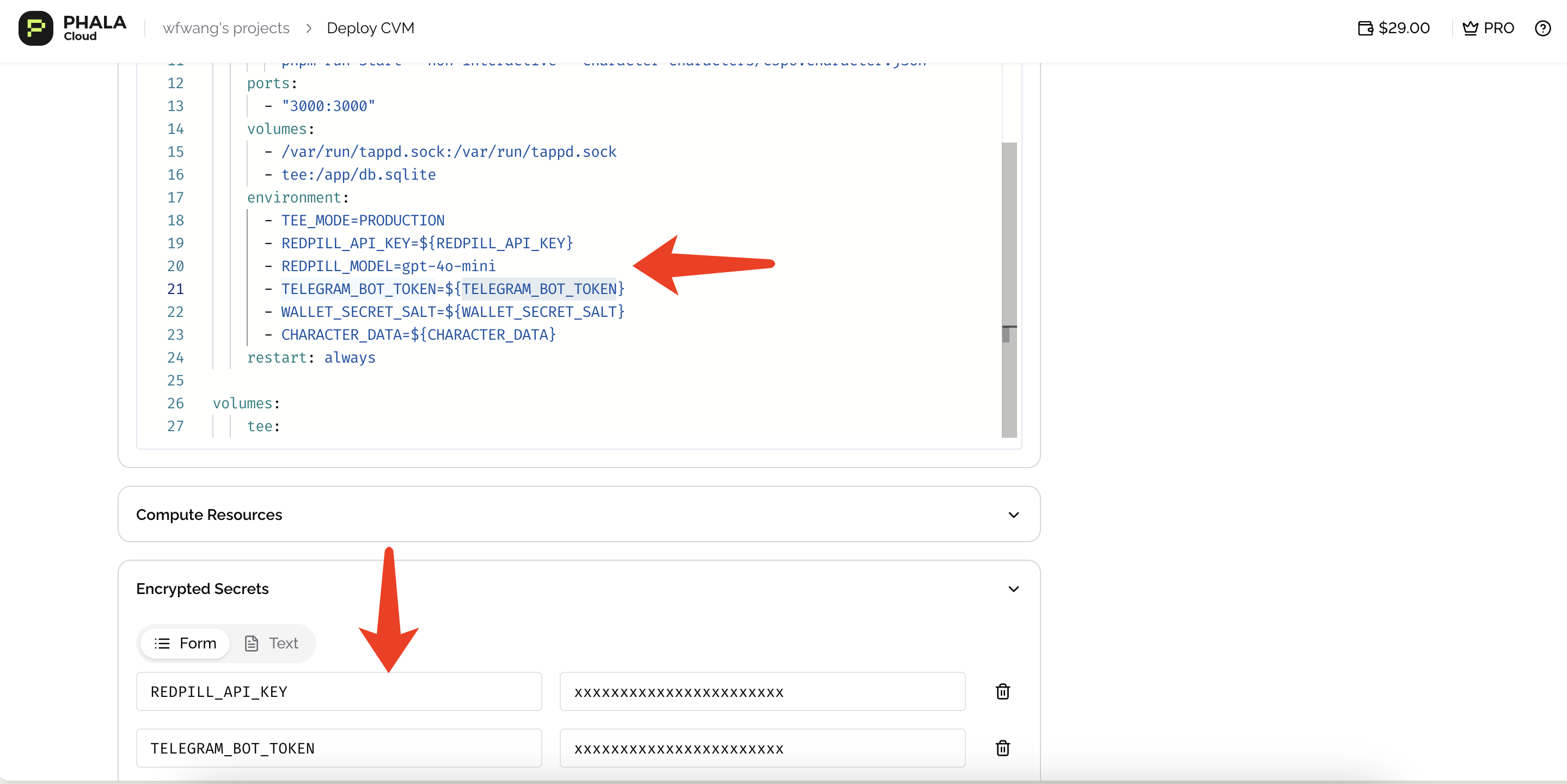
Encrypted Secrets configuration interface
Secret names don’t need to match your Docker Compose environment variable names. You can name
secrets anything in the UI, then reference them in Docker Compose using
${KEY} syntax.Besides the environment variables, you can also reference the encrypted secrets in any other place
like the command: docker compose directive. However, you should be careful to not leak the secret
values in the logs or other places.Learn more about Docker .env files here.Set Secrets via CLI
The CLI encrypts variables locally before sending them, just like the dashboard does.Set Secrets via SDKs
Each SDK provides methods to update environment variables programmatically. The encryption happens client-side before the API call.Set Secrets via Terraform
The Terraform provider supports auto-encryption mode where you provide plaintext values and the provider handles encryption.Best Practices
Never put secrets in the compose file. Always use encrypted secrets and reference them with${KEY} syntax. The compose file is stored on the server, but encrypted secrets are only decryptable inside the TEE.
Use a .env file locally for development. Keep a .env.example in your repo with placeholder values and add .env to .gitignore. This makes it easy for teammates to set up their own credentials.
Rotate secrets by redeploying. When you update encrypted secrets, the CVM restarts to pick up the new values. Plan for brief downtime, or run multiple replicas and rotate them one at a time to maintain availability.
Keep secret names consistent. Use the same key names in your compose file and encrypted secrets to avoid confusion. While Phala Cloud allows different names, matching them makes your configuration easier to audit.
Built-in Environment Variables
Phala Cloud attaches a default pre-launch script to every CVM deployment. This script runs before your Docker Compose services start, handling private registry authentication, root access setup, and injecting environment variables you can reference in yourdocker-compose.yml.
The built-in variables documented below are provided by the default pre-launch script. If you
replace it with a custom script via --pre-launch-script, these variables will no
longer be available unless your script implements them.
The pre-launch script is versioned (currently v0.0.14). New deployments always use the latest
version, but existing CVMs keep the version they were deployed with — there is no automatic update.
To use a newer version, you need to redeploy your CVM.
Private Docker Registry Authentication
Set the following encrypted secrets to pull images from a private Docker registry (Docker Hub, , etc.):
The pre-launch script logs in to the registry before pulling your images. If login fails, the CVM
boot is aborted.
AWS ECR Authentication
Set the following encrypted secrets to pull images from Amazon :The AWS CLI is installed inside the CVM when ECR credentials are detected — you do not need to
include it in your Docker image.
Root Access
App Metadata
The following variables are automatically injected by the pre-launch script. You do not need to set them — they are available in yourdocker-compose.yml.
You can reference these in your Docker Compose file:
DSTACK_APP_DOMAIN points to port 80 by default. To access a different port, use the pattern
${DSTACK_APP_ID}-<port>.${DSTACK_GATEWAY_DOMAIN}. For example, to access port 3000:
${DSTACK_APP_ID}-3000.${DSTACK_GATEWAY_DOMAIN}.