

Which Verification Guide to Follow?
The verification method depends on what the application deployer chose:
Both provide cryptographic proof of TEE control over TLS certificates. The difference is who operates the certificate infrastructure.
Gateway Domains
Gateway domains expose attestation endpoints that prove TEE control over TLS certificate private keys.What You’ll Verify
The gateway TEE publishes cryptographic evidence athttps://GATEWAY-DOMAIN/.dstack/ endpoints that proves:
- The TLS certificate private keys are generated and controlled by the gateway TEE
- TEE hardware backs all certificate operations
- Only the TEE-controlled Let’s Encrypt account can issue certificates for gateway domains
- All historical certificates are accounted for via TEE remote attestation
3-Step Verification
Example: We’ll usegateway.dstack-pha-prod7.phala.network - replace with your gateway domain.
Step 1: Get Gateway Evidence
The gateway publishes evidence through three endpoints:Step 2: Verify Certificate Matches TDX Quotes
Check that the served certificate matches the TEE-quoted keys:Step 3: Check Domain Protection and Certificate History
Verify only this TEE can issue certificates:- All certificates are from Let’s Encrypt (no other CAs)
- All the CAA record matches the account_uri from the TEE
- Historical keys in
hist_keyscorrespond to certificates in CT logs
Gateway Evidence Endpoints Reference
The
acme-info response structure:
Troubleshooting
“Connection refused to /.dstack/ endpoints”: These endpoints are only accessible via the gateway subdomain:gateway.dstack-pha-prod7.phala.network
“Certificate doesn’t match quoted keys”: The gateway may have recently renewed certificates. Re-fetch the evidence with a fresh acme-info request.
“Multiple ACME accounts in history”: Gateway upgrades or migrations may result in new ACME accounts. Check that the CAA record matches the current account_uri, and verify old certificates have expired.
What You’ve Verified
When all checks pass, you’ve cryptographically proven:- Zero-trust TLS: The gateway TEE controls certificate private keys, verifiable via TDX attestation
- Phala-operated infrastructure: Phala Network operates the gateway TEE and maintains CAA records
- Certificate transparency: All certificates are publicly auditable via CT logs
Custom Domains
Custom domains use dstack-ingress running in your application’s TEE to manage certificates. The application deployer operates the certificate infrastructure.What You’ll Verify
Your TEE publishes cryptographic evidence athttps://your-domain.com/evidences/ that proves:
- The TLS certificate is controlled exclusively by this TEE
- Intel TDX hardware backs the attestation
- No one else can issue certificates for this domain
Prerequisites
Before starting, you’ll need:- Your domain name (e.g.,
your-domain.com) curl,jq,openssl, anddigcommands installed- 3 minutes to complete all verifications
Simple 3-Step Verification
Example: We’ll usecustom-domain-demo.phala.systems - just replace with your domain.
Step 1: Get the Evidence Files
Your TEE publishes 4 files that prove it controls the certificate:Step 2: Verify the Certificate Matches
Check that the evidence matches what’s actually being served:Step 3: Check Domain Protection and Timeline
Make sure only this TEE can get certificates for your domain:- Already expired (check the “to” date)
- Issued by the same ACME account (meaning they were from a previous TEE deployment)
Understanding the Results
When all verifications pass, you’ve proven: ✅ Exclusive TEE Control: Only this specific TEE instance has the private key for your TLS certificate ✅ Hardware-Backed Security: Intel TDX hardware cryptographically signed the evidence, proving it’s a genuine TEE ✅ Domain Protection: CAA DNS records prevent anyone else (even with domain access) from issuing certificates ✅ Complete Chain of Trust: Every link from TDX hardware → evidence files → certificate → your connection is verifiedEvidence Files Reference
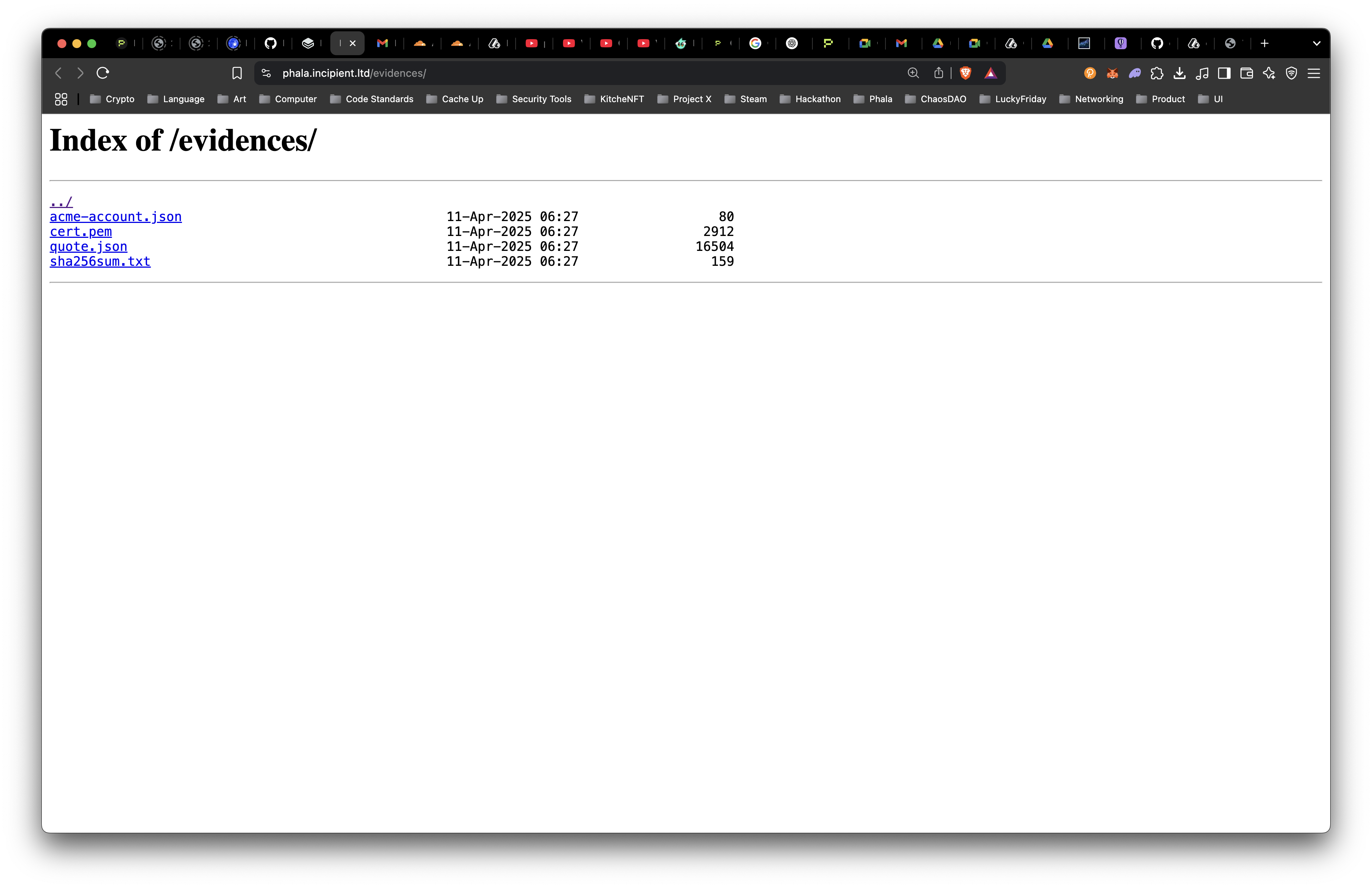
/evidences/ work together:
Troubleshooting
“Files not found at /evidences/”: Ensure your domain uses custom domain setup withSET_CAA=true
“Certificate doesn’t match”: The TEE may have renewed the certificate. Re-download evidence files.
“Hash not in quote”: Verify you’re checking a production TEE deployment, not a test instance.
“CAA record missing”: The domain owner needs to set CAA records pointing to the TEE’s ACME account.
Going Deeper: Application Trust
While you’ve verified the network connection is secure, the TLS private key is only as trustworthy as the code handling it. The key management software (dstack-ingress) runs inside the TEE and is open-source auditable code. To verify the exact code handling your keys matches what’s deployed, check the compose-hash in the TEE’s event log against the published source code. This ensures no malicious code can access or leak your private keys. Learn more: Application Attestation DocumentationComplete Security Checklist
Network Security (covered above):
- ✅ Evidence files verify TEE control
- ✅ TDX attestation proves hardware backing
- ✅ CAA records prevent unauthorized certificates
- ✅ Certificate timeline shows no pre-deployment threats
- ⚠️ Application code trust - Verify compose-hash matches source code
- ⚠️ Certificate timeline - Ensure no valid pre-CAA certificates exist
- ⚠️ Continuous monitoring - Watch CT logs for unexpected certificates
Next Steps
Monitoring
Set up alerts on crt.sh to detect unexpected certificate issuance:- Gateway domains:
%.dstack-pha-prod7.phala.network - Custom domains:
your-domain.com
Development
- Gateway verification: Integrate attestation checks into your security monitoring workflow
- Custom domains: Enable CAA records with
SET_CAA=truein your deployment configuration